Curved Poly
Intro
General Features
Shape Editing
First Steps into Shape Editor
User Interface and Settings
Operators and Views
Pointings Operator
Vertices
Handles
Edges
Polygons
Selection Operator
Tessellation Operator
Elasticity and Edge Normal
Curved Poly Inspector
Primitives and Demos
Assets and Libraries
Advanced Shape Editing
Hide Operator
Shape Control Operator
UV Operator
Backgrounds Operator
Creation and Composition
Anatomy of a Curved Poly Model
Create Operator
Geometries Operator
Unwraps Operator
Edit Operator - Overview
Edit Operator - Making Custom Primitives
Edit Operator - Inspecting and Fixing
Unwraps Operator
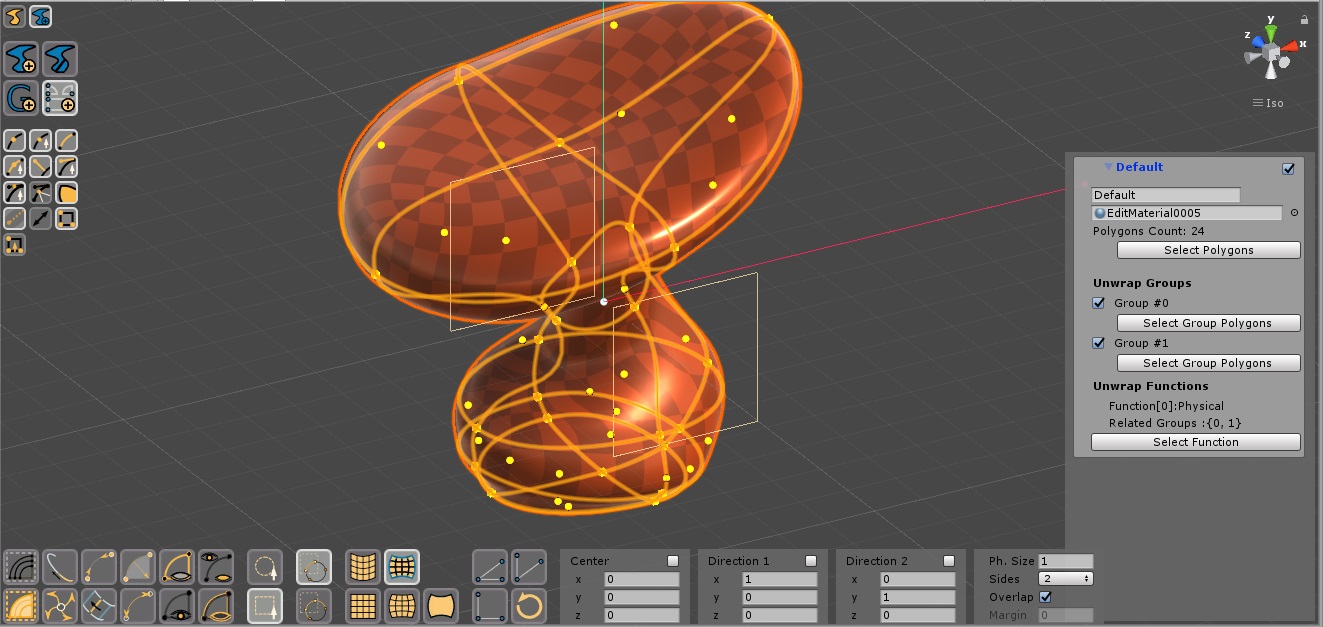
Fig. 1 Unwraps Operator
This operator contains functions which can be used to automatically generate uv coordinates (unwraps) for your needs. The general way to use the operator should always follow this steps.
- (A)Select a Geometry : you can do this with the Geometries Inspector, which is the same used also in Geometries Operator
- (B)Select a Group of Polygons : here you will use the same approach and instruments you have already used in other operators. You have a Rectangular and a Circular selectors which can be used on the Scene View with a Full or Part options: the only difference here is that selector will affect only polygons, so you can't directly select vertices or edges, and only polygons belonging to the actually selected geometry can be selected in this way. You can still select other polygons using actions like Select All or Grow, but the operator will only affect selected polygons belonging to the selected Geometry.
- (C)Choose an Unwrap Function : when you select a function, an instance of it will be added to actually selected geometry. The function will contain one or more unwrap groups, generated from the polygons you have selected in a way which depends on the function.
- (D)Fix the Unwrap Function parameters : an Unwrap Function has many parameters, which can be controlled after you have generated it. You may change and recall (reset) the Unwrap Function and its parameters more times before achieving a good unwrap or an unwrap which can be a good starting point before moving to the UV Operator.
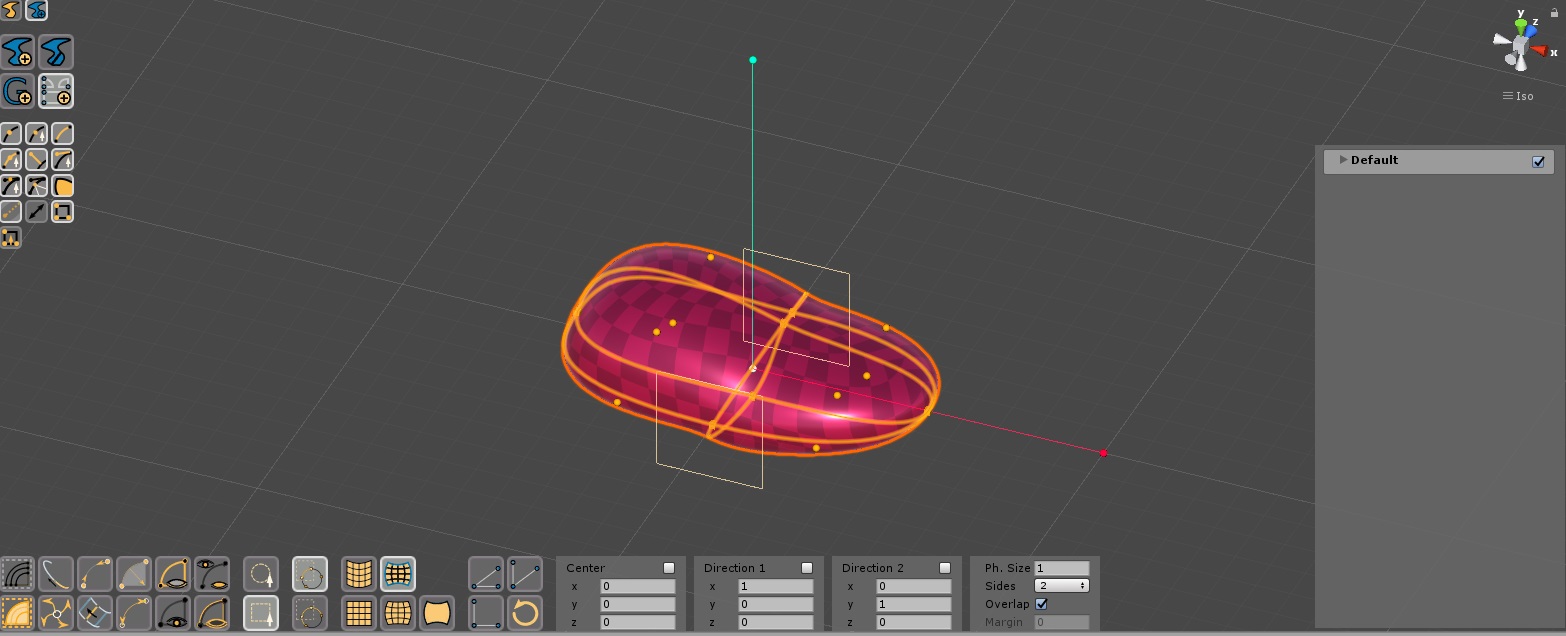
Fig. 2 The Unwraps Operator at work.
About this process, you should always keep in mind that:
- A Geometry can have one or more Unwrap Groups (this was previously explained in the chapter about UV Operator).
- A Geometry can have one or more Unwrap Functions.
- An Unwrap Function can have one or more Unwrap Groups. The list of Unwrap Groups in the Geometry is the sum of Unwrap Groups generated by its functions.
So: there is a hierarchy involving Geometries, U.Groups and U.Functions. You may find it a bit complex at the beginning, but you will find it pretty practical once you have used it a few times, especially because Unwrap Functions can be assigned and modified only in the Unwrap Operator and they don't affect any other operator. They exist only to make it easier the generation of Unwraps Groups. The key point here is that you can have more Functions for the same Geometry so that you can cut the geometry into different parts to apply a different unwrap function to each part, and this is very important when you need to unwrap complex geometries made of a lot of polygons and with irregular shapes.
There are 5 available unwrap functions:
 Planar Unwrap (Bisided): Generates uv coordinates mapping 3D coordinates
on a plane. It is bisided, meaning that by default it will generate 2 Unwrap Groups, splitting the model into two halves watching the two sides of the plane. You can set it to 4 or 6 sides, to get 4 or 6 Unwrap Groups generated by cutting the model with respectively 2 or 3 planes.
Planar Unwrap (Bisided): Generates uv coordinates mapping 3D coordinates
on a plane. It is bisided, meaning that by default it will generate 2 Unwrap Groups, splitting the model into two halves watching the two sides of the plane. You can set it to 4 or 6 sides, to get 4 or 6 Unwrap Groups generated by cutting the model with respectively 2 or 3 planes.  Cylinder Unwrap: Generates uv coordinates mapping 3D coordinates
on a cylinder. By default it will generate 2 Unwrap Groups, splitting the model into two halves watching the two sides of a reference plane containing the axis of the cylinder.
Cylinder Unwrap: Generates uv coordinates mapping 3D coordinates
on a cylinder. By default it will generate 2 Unwrap Groups, splitting the model into two halves watching the two sides of a reference plane containing the axis of the cylinder.  Spherical Unwrap: Generates uv coordinates mapping 3D coordinates
on a sphere. By default it will generate 2 Unwrap Groups, splitting the model into two halves watching the two sides of a reference plane passing through the center of the sphere.
Spherical Unwrap: Generates uv coordinates mapping 3D coordinates
on a sphere. By default it will generate 2 Unwrap Groups, splitting the model into two halves watching the two sides of a reference plane passing through the center of the sphere.  Physical Unwrap: This is an experimental function. It is
an improved version of Planar Unwrap Bisided which takes into account the arc length of edges in 3D space to improve the edge shape in uv space.
Physical Unwrap: This is an experimental function. It is
an improved version of Planar Unwrap Bisided which takes into account the arc length of edges in 3D space to improve the edge shape in uv space. Empty Unwrap: An Unwrap which doesn't assigne values, generating
only one Unwrap Group. It's the default function for imported parts or parts generated with the Create
Operator. If you press the button, you will get an unwrap with all uv coordinates assigned
to 0 (zero).
Empty Unwrap: An Unwrap which doesn't assigne values, generating
only one Unwrap Group. It's the default function for imported parts or parts generated with the Create
Operator. If you press the button, you will get an unwrap with all uv coordinates assigned
to 0 (zero).
Unwrap Functions Parameters
The most important parameters of a Function are its center and reference directions, which are used to control cutting planes. This parameters can be edited directly on a set of Handles which appears in the scene view: a white sphere is the center; a red line ending with a sphere is the first direction, and a green line ending with a sphere is the second direction. You can point on a sphere to access a Move Tool to change its position. Around the frame made by the two directions you will see 2 (or more) yellow quads showing the sides of the unwrap functions, that is the reference used during the generation of each unwrap group. These parameters can be changed also with a menu. All these controls are available only after a Function has been generated or selected (to select a function, you need to look for it in the in-scene Geometries Inspector on the right).
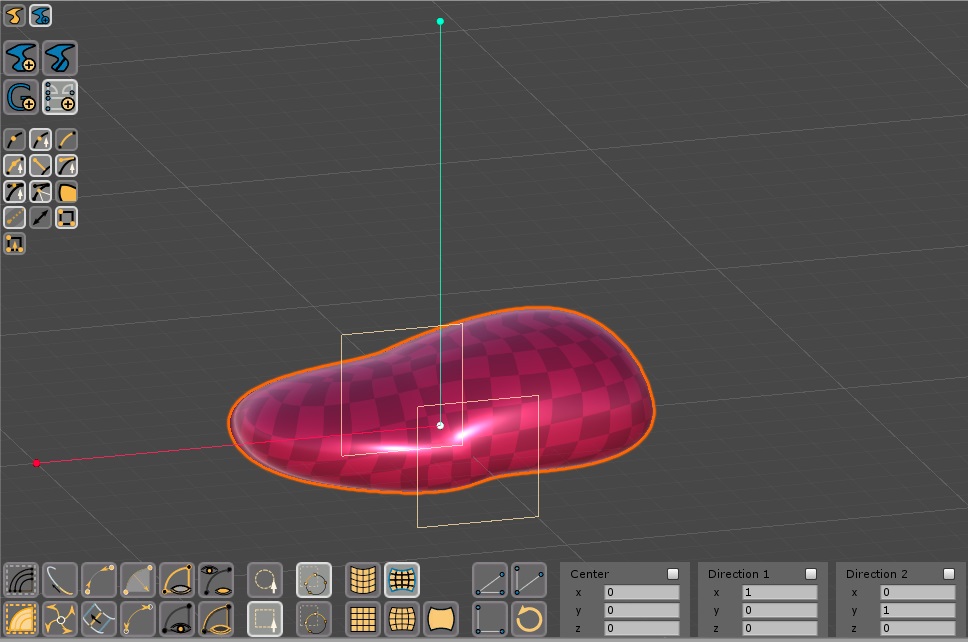
Fig. 3 The Unwraps Frame (center, directions and planes). Here other graphical elements visibility has been disabled.
Other parameters are:
- Physical Size: this parameter controls the rapport between distances in 3D space
and distances in uv space. This rapport can't be applied perfectly on unwrapped curved surfaces (this is a classical problem of unwrapping), but each unwrap function will work to do its best to get close to it. Physical Unwrap has been designed to match Physical Size better than the others.
- Sides: this parameter controls amount of Unwrap Groups generated by the function.
- Overlap: this parameter controls the way the unwrap groups are placed in uv space If true, the groups will be overlapped, otherwise they will be placed at different position in uv-space.
- Margin: this parameter is available only when overlap is false. It controls the spacing between adjacent groups placed at different position in uv space.
Most of these parameters will not affect directly the function until you Reset the Unwrap with one of this actions:
- Click on
any Unwrap Function: You can change the unwrap function. The new function will keep your
parameters assignment, then will recompute the Unwrap.
 Reset
Unwrap: recompute the unwrap taking into account any updated parameter in the Function.
Reset
Unwrap: recompute the unwrap taking into account any updated parameter in the Function. Unwrap Frame on XY: set the Unwrap Frame so that its directions
become the x and y axis, than it recomputes the unwrap.
Unwrap Frame on XY: set the Unwrap Frame so that its directions
become the x and y axis, than it recomputes the unwrap. Unwrap Frame on XZ: set the Unwrap Frame so that its directions
become the x and z axis, than it recomputes the unwrap.
Unwrap Frame on XZ: set the Unwrap Frame so that its directions
become the x and z axis, than it recomputes the unwrap. Unwrap Frame on ZX: set the Unwrap Frame so that its directions
become the y and z axis, than it recomputes the unwrap.
Unwrap Frame on ZX: set the Unwrap Frame so that its directions
become the y and z axis, than it recomputes the unwrap.
Keeping control other Unwrap Functions
There are a few things you can do to control your unwrap functions.
- After you create a new Unwrap Function: the Operator will continue working on that function, until you change your polygons selection. While the function is active, you will be able to change its parameters and even change the function type itself. All the groups for that function will be regenerated with your new function type and parameters.
- If you select a polygon which was previously unwrapped for a new unwrap function: it will be removed from the previous Unwrap Function, since each polygon can belong only to one unwrap function at a time. Eventually empty functions and groups will be removed from the geometry.
- If you select all polygons and create a new function: all polygons will be moved to the new function, so all previously generated functions and groups will be removed from the geometry (you can always Undo things). This is usefull if you want to remove all the unwraps or restart from scratch
- When generating a Function you don't have to select all polygons: select the ones you want to unwrap now with a specific function, you will be able to apply a second function on the other ones.
- When you want to load back a function to change some of its parameters: you can do this by pressing its Select Function button in the Geometries Inspector.
<< Prev Next >>